
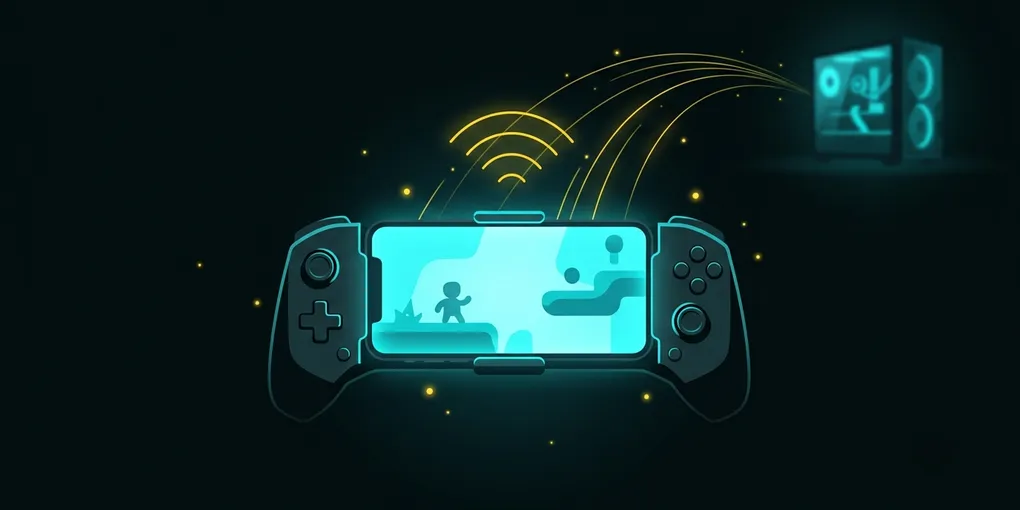
How to Use Your Phone as a Gaming Handheld (Steam Link, Remote Play)
Your phone can’t run big PC or console games on its own, but it can stream them from a machine at home. That turns it into a handheld screen, as long as your network is up to the job.
Where streaming helps
Steam Link streams your PC games. Steam Link is Valve’s free app for iPhone, iPad and Android. According to its App Store listing, you pair a controller, connect to a computer running Steam on the same local network, and play your existing Steam games. For best results, connect the PC to a 5GHz Wi-Fi router with Ethernet and put the phone on the 5GHz band.
PlayStation Remote Play streams from a PS4 or PS5. Sony says Remote Play is available on all PS4 and PS5 consoles and works over Wi-Fi or mobile data, with at least 15 Mbps recommended. DualSense extras like haptic effects may vary on phones, so don’t expect a perfect copy of the console experience.
Xbox has its own remote play. Xbox’s page says you can play games installed on an Xbox Series X|S or Xbox One on a compatible phone, tablet or PC, using a controller or touch controls. It lists Android 6.0 or later or iOS 15.1 or later, plus a Microsoft account with an Xbox profile. Older Xbox pages describe setup differently, so follow the steps on Xbox’s current official page.
A Bluetooth controller makes it feel like a handheld. Steam Link supports controllers such as MFi controllers and Valve’s Steam Controller, and Sony’s page covers pairing a DualSense. A phone clip that holds the controller makes the setup feel like a real handheld.
Where it falls short
Streaming adds some delay between a button press and what you see, and weak Wi-Fi makes that worse, which can hurt fast competitive games. Your PC or console has to stay on and connected the whole time. Steam Link’s listing says the phone must be on the same local network as the PC, so plan on using it at home. Streaming from a console over mobile data can use your data allowance, and Xbox notes that mobile data charges may apply.
Staying safe
Install the apps only from the official App Store or Google Play listings by Valve, Sony and Microsoft, and avoid third-party apps that ask for your account password. Keep an eye on mobile data if you stream away from home, and check each service’s terms for how remote play is meant to be used.
A good starting point
Install Steam Link on your phone, open Steam on your PC, and connect both to the same 5GHz Wi-Fi. Pair a controller and start with a slower, single-player game to see how the connection holds up.